- 1. 概要
- 2. インストール
- 3. .vsix ファイル作成
- 4. 拡張機能インストール
- 5. 参考サイト
1. 概要

 ちょっとはしょりまして。
 作成したものを拡張機能として組み込むための準備を行います。

2. インストール

 拡張機能をパッケージ化するための公式ツールをインストールします。
 コマンドプロンプトを開いて。


npm install -g @vscode/vsce


npm warn deprecated whatwg-encoding@3.1.1: Use @exodus/bytes instead for a more spec-conformant and faster implementation
npm warn deprecated prebuild-install@7.1.3: No longer maintained. Please contact the author of the relevant native addon; alternatives are available.
npm warn deprecated glob@11.1.0: Old versions of glob are not supported, and contain widely publicized security vulnerabilities, which have been fixed in the current version. Please update. Support for old versions may be purchased (at exorbitant rates) by contacting i@izs.me

added 299 packages in 13s


3. .vsix ファイル作成

 「.vsix」ファイルちゅうものを作成するらしい。
 この後で、エラーになったので、ここで。


README.md


 を編集しておきます。
 初期作成時のままだとえらーになるとのことで、「Markdown」方式であれば、なにを書いてもいいでしょう。

 プロジェクトフォルダで、コマンドプロンプトを開いて。


vsce package


Executing prepublish script 'npm run vscode:prepublish'...

> smart-history-search@1.0.0 vscode:prepublish
> npm run compile

> smart-history-search@1.0.0 compile
> tsc -p ./

 WARNING  A 'repository' field is missing from the 'package.json' manifest file.
Use --allow-missing-repository to bypass.
Do you want to continue? [y/N]
 WARNING  LICENSE, LICENSE.md, or LICENSE.txt not found
Do you want to continue? [y/N]
 INFO  Files included in the VSIX:
smart-history-search-1.0.0.vsix
├─ [Content_Types].xml
├─ extension.vsixmanifest
└─ extension/
   ├─ changelog.md [0.23 KB]
   ├─ package.json [1.52 KB]
   ├─ readme.md [0.33 KB]
   └─ out/
      ├─ extension.js [4.22 KB]
      └─ test/
         └─ extension.test.js [1.94 KB]

 DONE  Packaged: D:\extensions\exercise\smart-history-search-1.0.0.vsix (7 files, 5.1 KB)


 途中問い合わせがあるのは、「リポジトリないけどいいかい?」「ライセンスの記述ないけどいいかい?」ということで。
 まだ公開予定がなければ、y Enter でいいでしょう。
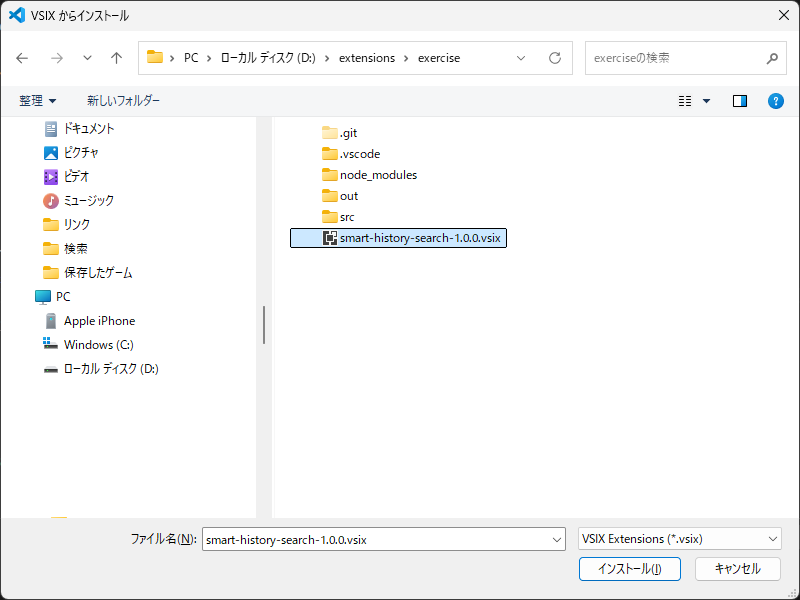
 これで、プロジェクトフォルダに。


xxxxx-x.x.x.vsix


 てなファイルが作成されます。

4. 拡張機能インストール

 作成された、拡張機能を「Visual Studio Code」へインストールするには。
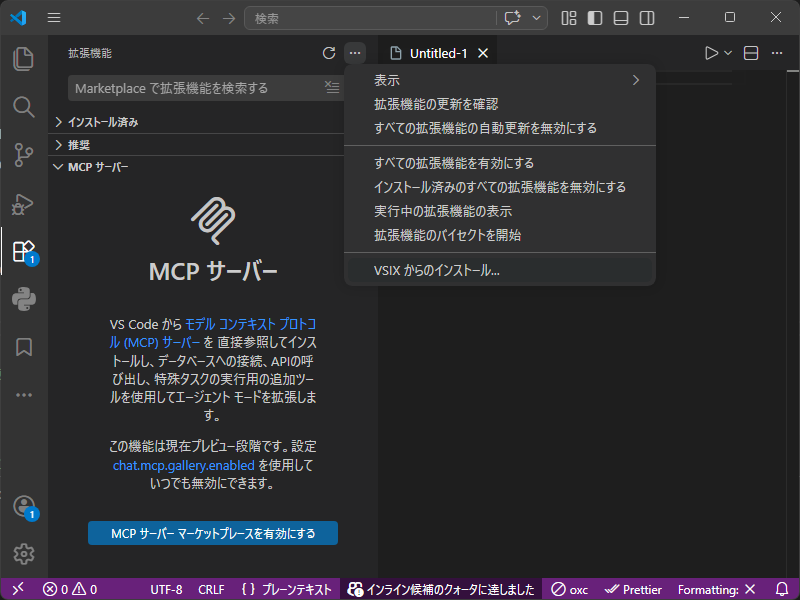
 「Visual Code Studio」の拡張機能で。
 右上、三点リーダ「」を開いて。
 「VSIX からのインストール」
ファイルオープンダイアログが開きますので、作成した「.vsix」を選択して「インストール」
 これで、インストールは、完了です。

5. 参考サイト

 本ページは、「Gemini」伍長を参考にさせていただきました。
|
|